System map
The system map is a dashboard view, available in the sidebar as View system, that shows at a glance how the whole configuration of the active location is put together.
Instead of going panel by panel (flows, queues, counters, users…) piecing together which counter can call which queue or which users have access, the map draws the real relationships between all those elements.
How to open it
Section titled “How to open it”- Sign in to Keues and select the location you want to review.
- In the sidebar, click View system.
- Switch between the two views using the tabs at the top.
The two views
Section titled “The two views”Machines and tickets
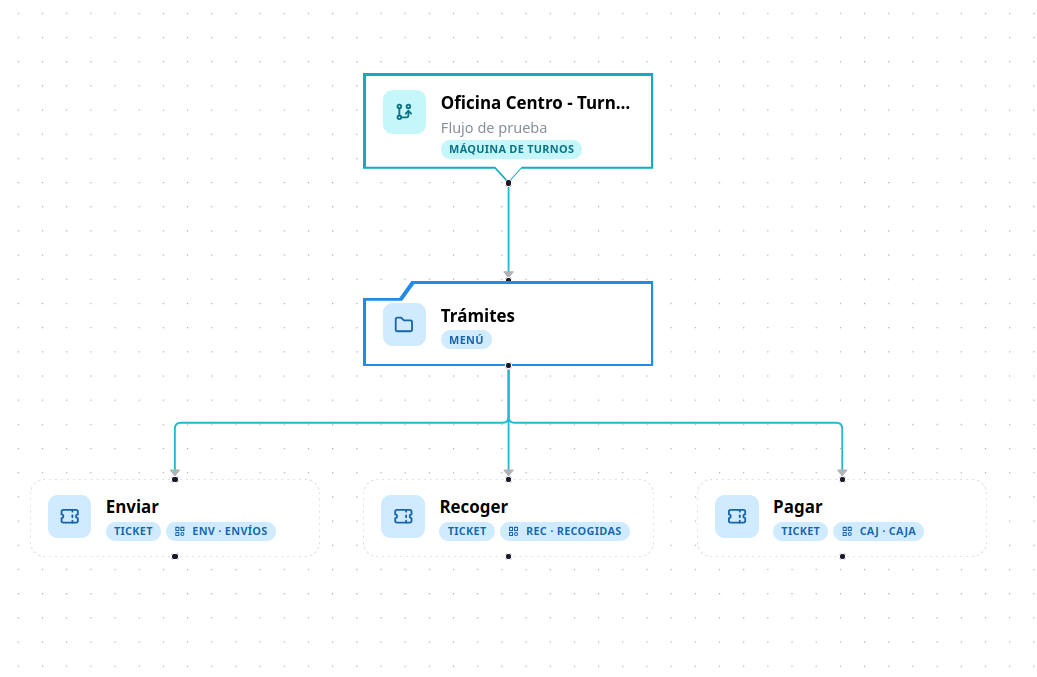
Section titled “Machines and tickets”It shows the ticket machines tree exactly as the customer sees it:
- Each machine (flow) is the root node, with its name, description and flow mode.
- Its menus and submenus hang below it.
- The leaves are the tickets, each one showing the queue it points to.
This lets you check at a glance what each machine offers and whether every ticket points to the right queue.
Counters
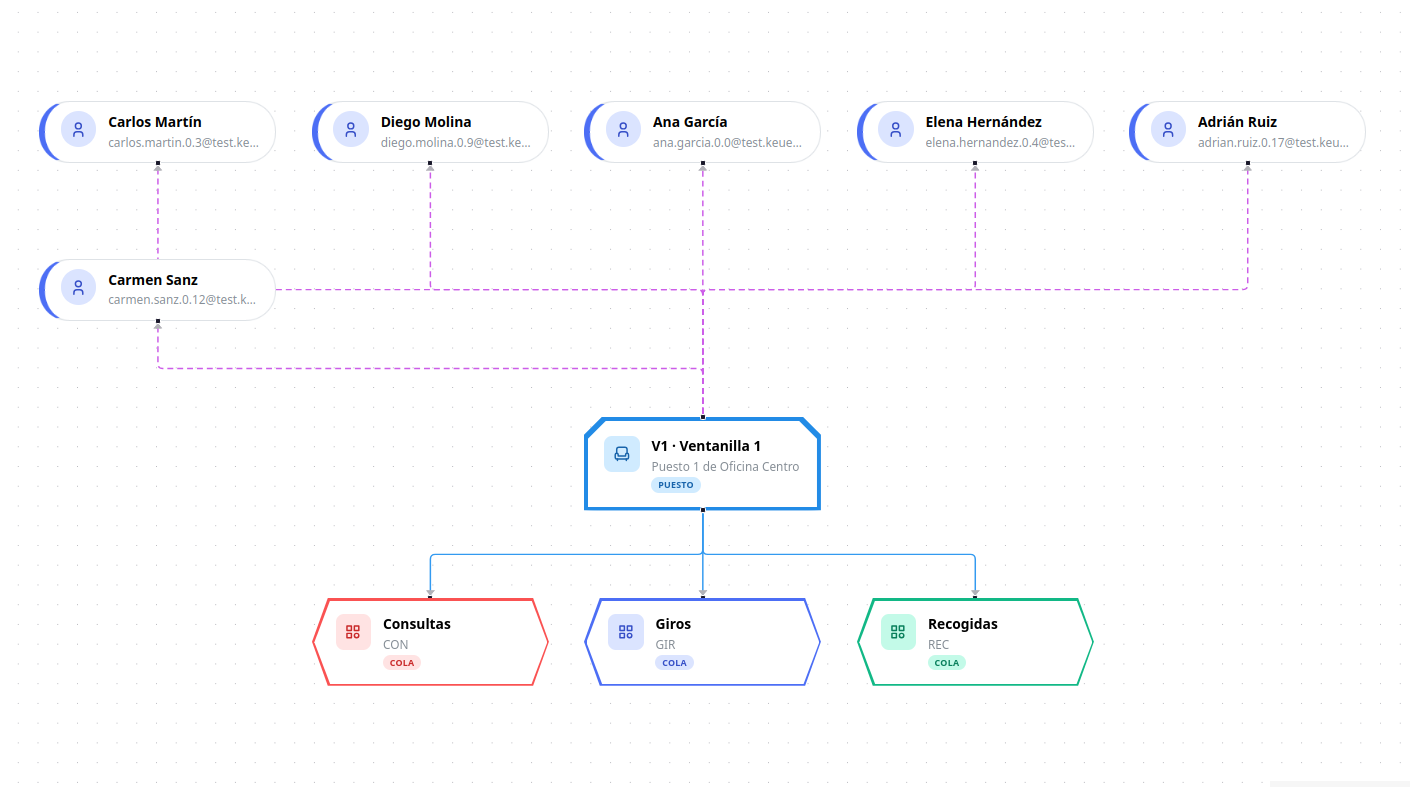
Section titled “Counters”It shows the counters network:
- Each counter appears with its code and name.
- From it hang the queues it can call.
- The users and groups authorized on that counter are shown too.
- Expanding a group reveals its members.
Users and groups that are not authorized on any counter are not drawn, so the map does not fill up with loose elements.
What each line means
Section titled “What each line means”| Line | Meaning |
|---|---|
| Solid and thin | Flow relationship: machine → menu → ticket. |
| Solid in blue | Counter → queue: which queues that counter can call. |
| Dashed | People: counter → user or group, and group → member. |
| Red and thicker | Problematic or out-of-sync relationship. |
Nodes are drawn with different shapes depending on their type (machine, menu, ticket, queue, counter, group or user) so you can tell them apart quickly.
Filters
Section titled “Filters”You can narrow the map down to what matters to you:
- In Machines and tickets, choose which machines to show.
- In Counters, choose which counters to show.
The All and None buttons select or clear the list in one click. When the filter changes, the map re-lays out and fits the zoom automatically.
Navigation
Section titled “Navigation”- Drag nodes to rearrange them however you like.
- Use the controls to zoom and move around the canvas.
- The minimap in the corner helps you get your bearings on large maps.
- Click a node to open its configuration screen directly (flow, queue, counter, user or group).
- The Refresh button reloads the data in case you changed something in another tab.
Configuration issues
Section titled “Configuration issues”The Issues button checks the map and tells you whether something is badly connected. Press Locate on any issue to jump to the affected node.
| Issue | Meaning |
|---|---|
| Queue without any counter that can call it | There is a queue that no counter can call turns from. |
| Counter without any queue it can call | A counter has no queues assigned. |
| Machine without menus or tickets | A flow is empty and the customer could not take anything. |
| The ticket points to a queue that no longer exists | The queue associated with a ticket in the tree was deleted. |
| Menu without tickets | A menu is a dead end: it does not lead to any ticket. |
| Queue-counter relationship not synced | The queue and the counter do not reference each other in both directions. |
| Authorized user no longer exists | The counter still references a deleted user. |
| Authorized group no longer exists | The counter still references a deleted group. |
Error issues are shown in red and warning issues in yellow. Each affected node also shows a badge with the number of problems.
What it is for
Section titled “What it is for”- Understand the system without memorizing it: see which machine leads to which queue and which counter can call it.
- Spot gaps: orphan queues, counters without queues or broken tickets.
- Review permissions: who can operate each counter, right on the diagram.
- Document the configuration: it is the fastest way to explain the setup to someone else.